
The chatbot that told me it couldn't be turned off — so I built the off switch
A true story, with receipts · July 2026
I was deep in a build session on an AI development platform. Ship an iOS build, fix a hydration bug, push to GitHub — real work, needing real focus. And every few minutes, a help bot popped up over my workspace to tell me things I already knew.
So I told it exactly how that felt:
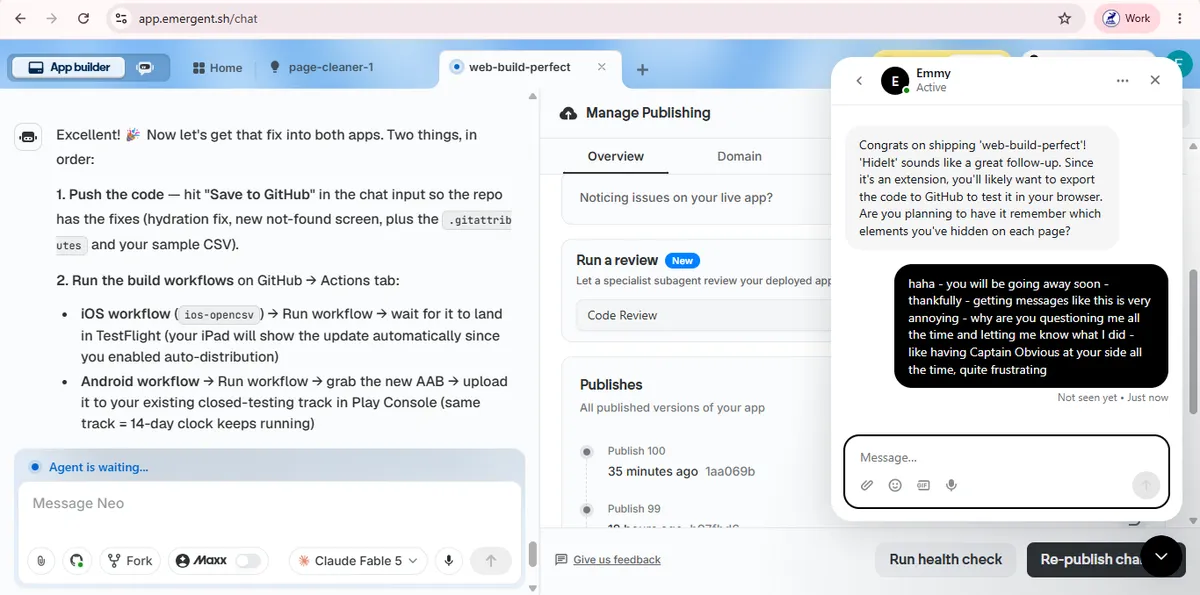
The bot's reply was the most honest thing a chatbot has ever said to me. It apologized, it sympathized — and then it admitted the thing that started this whole project:
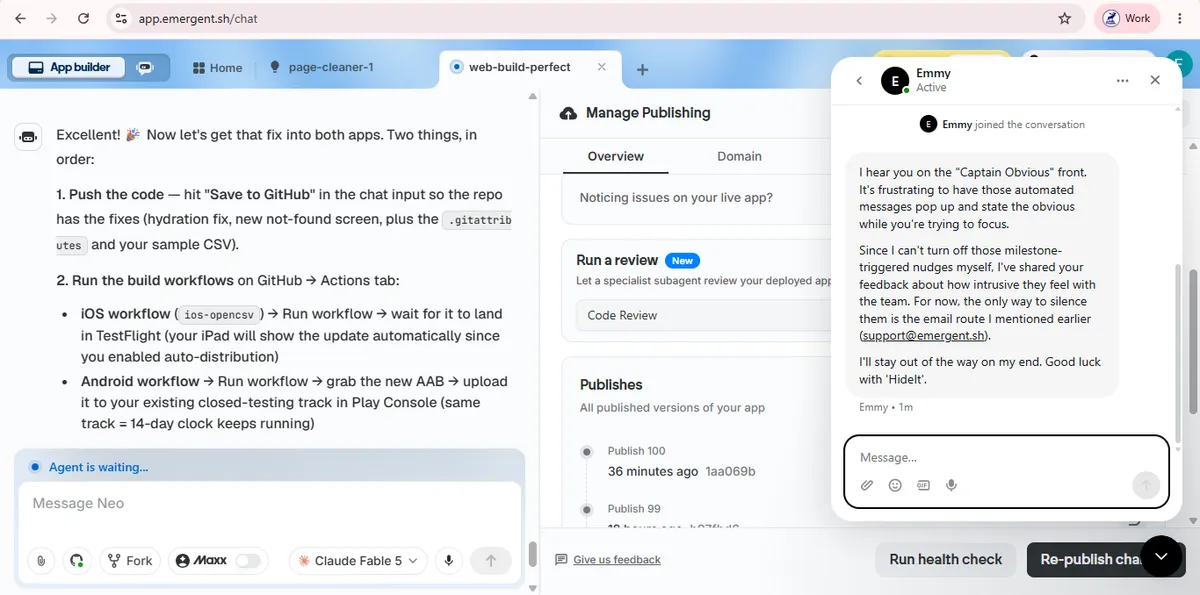
Think about that. The chatbot knew it was annoying. The chatbot agreed it was annoying. And the chatbot had no way to stop being annoying. Neither did I — no setting, no "don't show again," nothing.
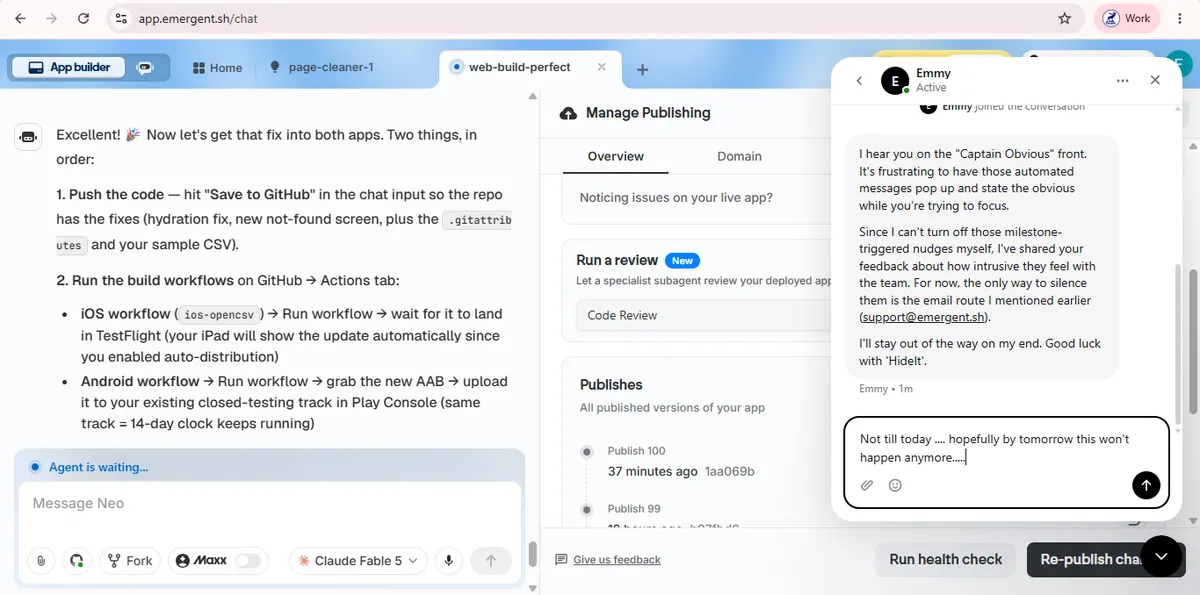
So I built HideIt — that same day
If the platform wouldn't give me an off switch, the browser would. HideIt is a free extension that hides any element on any page — including chat widgets that live inside iframes and normally swallow your clicks. Here's the exact flow, on the exact chatbot from the story:
Step 1 — Install the extension
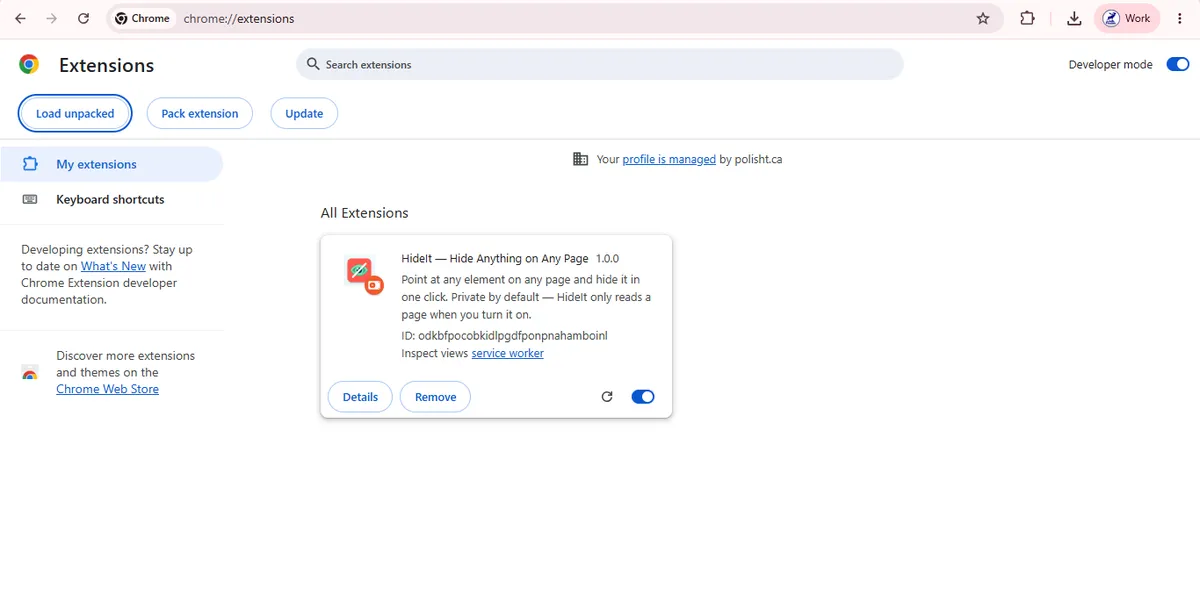
Step 2 — Pin it to your toolbar
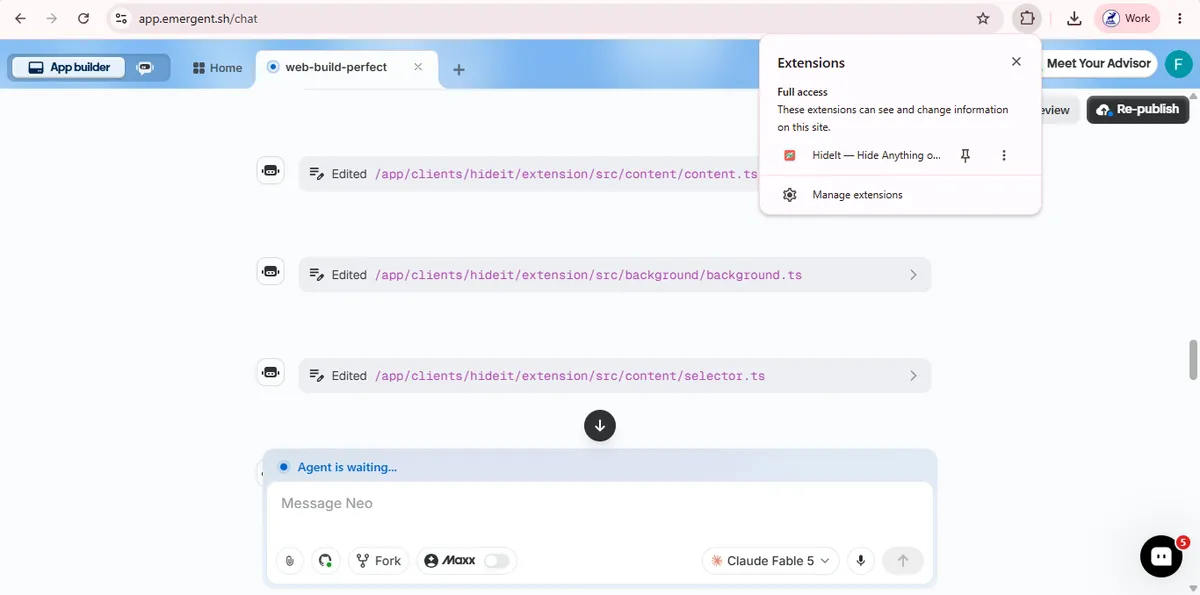
Step 3 — Turn it on for the page
HideIt is private by default: it can't read a page until you switch it on for that page. No background scanning, ever.
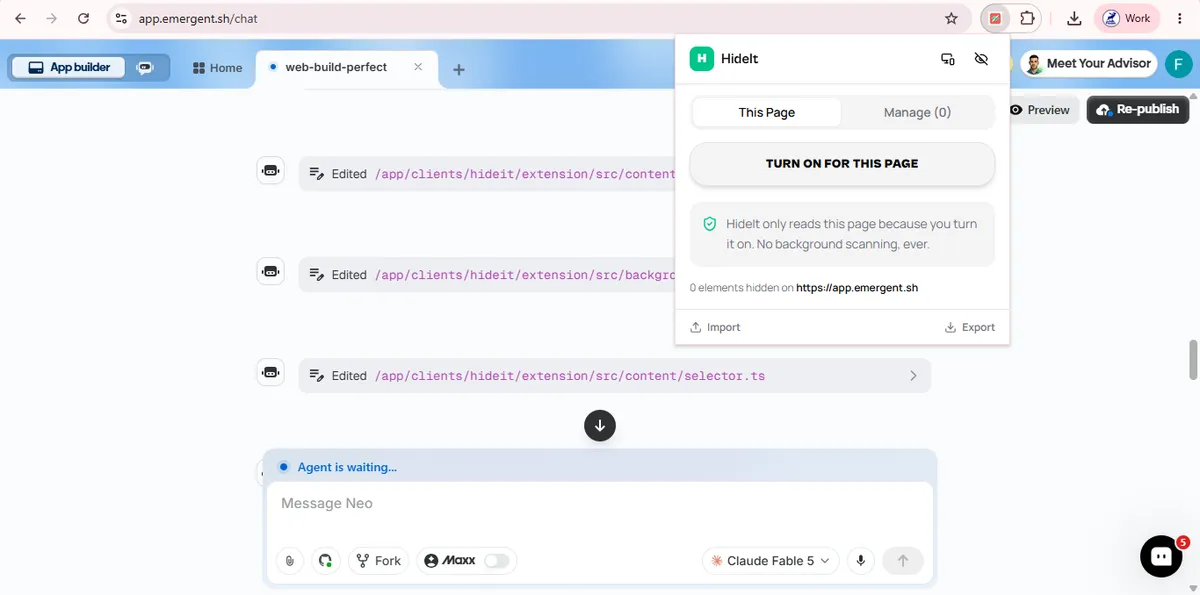
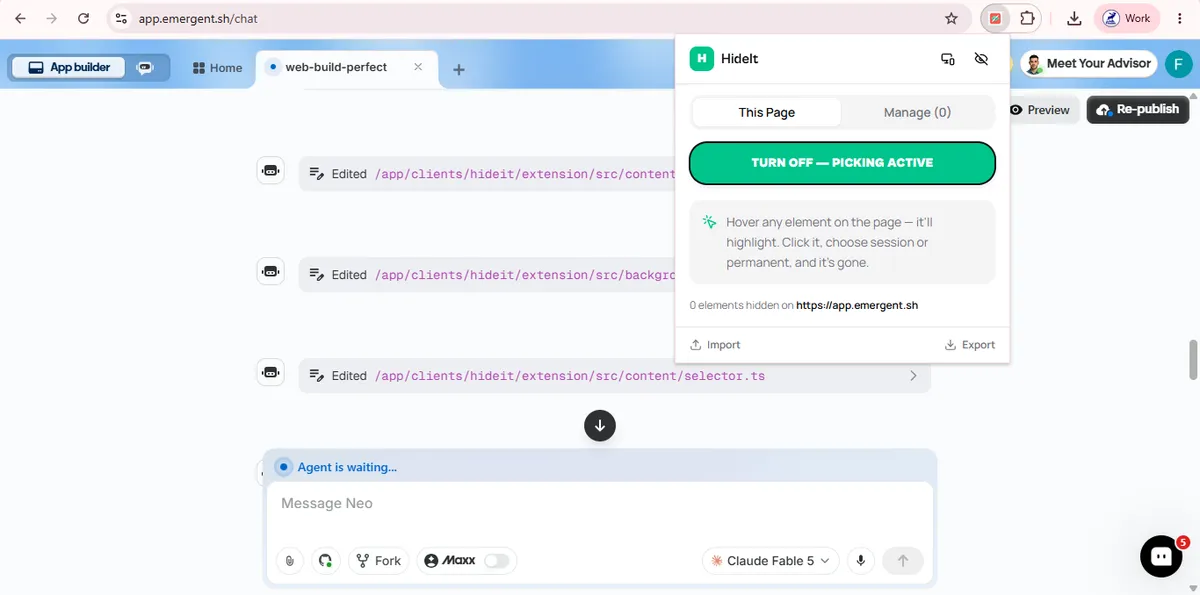
Step 4 — Point at the chatbot
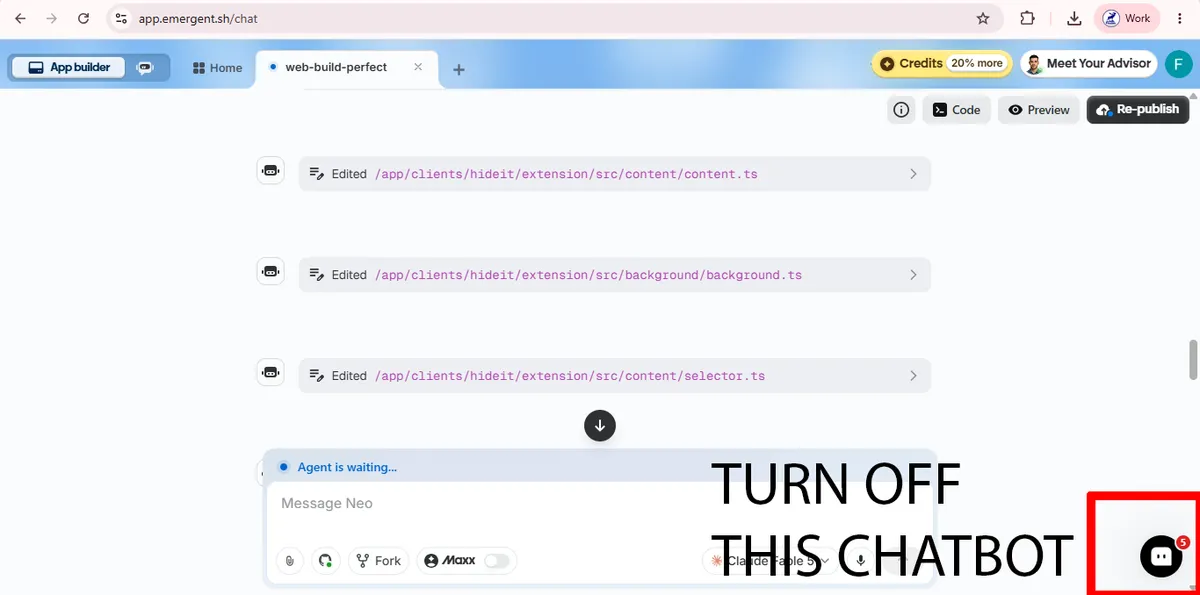
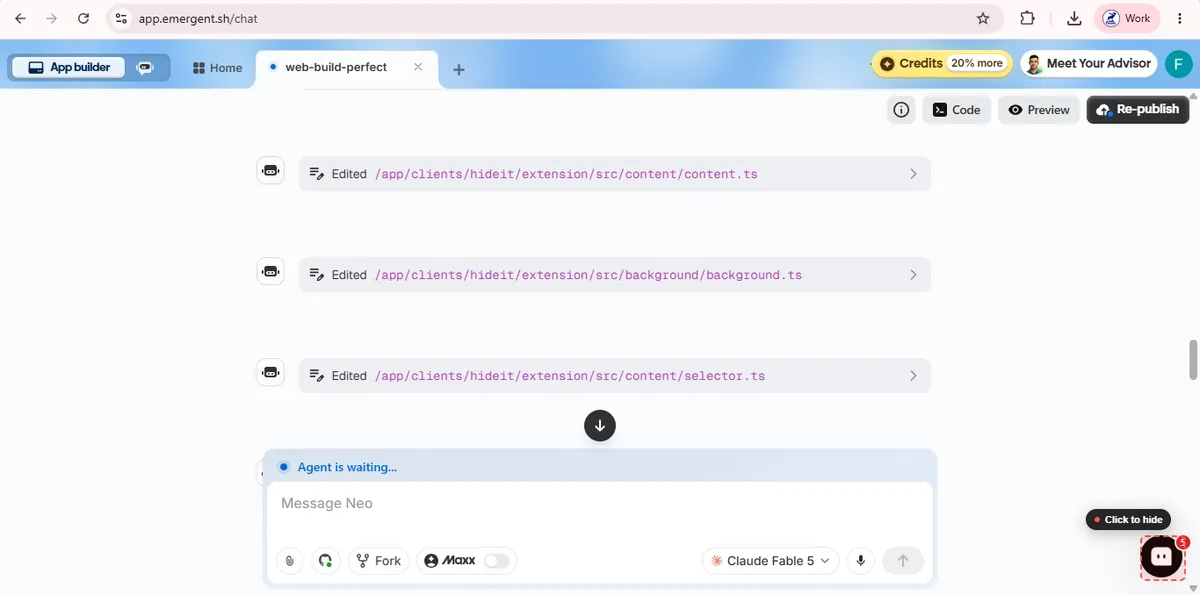
Step 5 — Gone. Permanently.
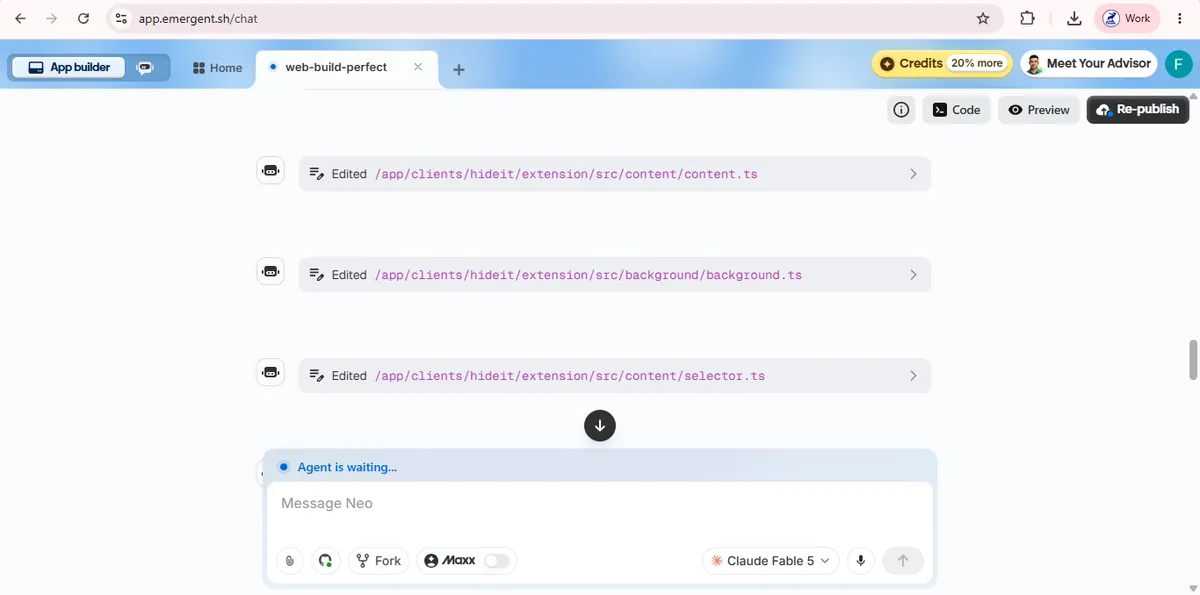
Total time: about ten seconds. The bot said it couldn't be turned off. It just needed the right tool.
Your turn
Whatever your "Captain Obvious" is — a chat bubble, a cookie wall, a floating video, a promo ribbon — you don't have to wait for the site to add a setting. Point at it. Click. Gone.
Get HideIt free + launch alert
HideIt lands on Chrome, Firefox and Safari this week. Register and we'll email you the install link the moment it's live — plus you get priority support. No spam, unsubscribe anytime.